

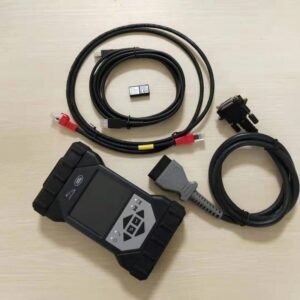
JLR DOIP VCI WIfi Bosch Genuine for Topix Cloud


$2,199.00
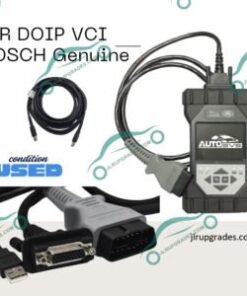
JLR DOIP VCI WI-FI BOSCH ORIGINAL VCI Work with SDD Pathfinder & Topix Cloud Software The new JLR-approved DOIP VCI is the only unit that will be compatible with Pathfinder and all JLR vehicles with the new vehicle architectures (from the Range Rover/Range Rover Sport (L405/L494) 17MY onwards) or allow the enhanced diagnostics that Pathfinder […]
JLR DOIP VCI WIfi Bosch Genuine Diagnostic Tool Support SDD + Pathfinder + Topix Cloud
1. Product Status
Genuine Bosch JLR official certified brand-new original device, fully supporting complete factory-level diagnosis, programming and flashing protocols for Jaguar and Land Rover vehicles.
2. Product Overview– JLR DOIP VCI WiFi Bosch Genuine for Topix Cloud
This brand-new JLR-certified DoIP VCI is the officially recognized new-generation diagnostic communication interface and the only genuine hardware compatible with the latest Pathfinder system. It is specially designed for 2017 and newer Jaguar/Land Rover models equipped with DoIP Ethernet architecture such as Range Rover and Range Rover Sport, unlocking full enhanced factory diagnosis and programming functions of Pathfinder.
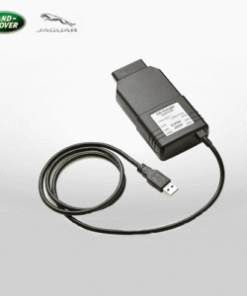
The device features backward compatibility and stably communicates with 2014–2016 multi-CAN architecture vehicles, achieving full coverage of new and old models. It supports the legacy SDD system, new Pathfinder system and Topix Cloud diagnosis. It is perfectly suitable for full-series Jaguar and Land Rover maintenance, programming, flashing and matching without third-party clone tools.
Payment Note: Bank transfer only for this device.
Permission Advantage: No private Topix account required. The device directly matches the software for diagnosis and programming operations.
3. Compatible 2014–2016 Models for DoIP VCI
The following 2014–2016 models fully support dual-system diagnosis and programming with this DoIP VCI:
-
XE (X760)
-
F-Pace (X761)
-
F-Type (X152)
-
XF (X260)
-
XJ (X351) – 2016 model only
-
Range Rover Evoque (L538)
-
Discovery Sport (L550)
-
Range Rover (L405)
-
Range Rover Sport (L494)
-
All-new Defender series and latest sport models (full official compatibility)
4. Core Advantages – JLR DOIP VCI WiFi Bosch Genuine for Topix Cloud
-
Genuine Bosch JLR certified device, fully replacing legacy JLR VCI and original DoIP VCI tools
-
Compatible with legacy SDD system, new Pathfinder system and Topix Cloud diagnosis
-
Supports CAN, MultiCAN, ISO9141 and SCP full vehicle network protocols
-
Dual connectivity: WiFi wireless + USB wired, flexible for various working scenarios
-
Built-in standard J2534 protocol, supporting future function upgrades
-
Comes with 2-meter original USB cable, plug-and-play with stable compatibility
The device connects to the vehicle via standard OBDII port and links to the computer via USB. After loading the official J2534 driver, it supports full communication, diagnosis and programming with SDD and Pathfinder software.
5. Full Supported Functions
-
2017+ Newer Models: Fully compatible with all Pathfinder diagnosis and programming procedures
-
2016 & Older Models: Supports complete SDD diagnosis and programming protocols
-
Supports offline Pathfinder activation without official online accounts
-
WiFi wireless communication support for cable-free operation
-
Supports VBF vehicle firmware editing and E-XML configuration file editing
-
Compatible with SDD and Pathfinder engineering-level functions
-
Supports online programming, module coding and anti-theft key matching
-
Supports engineer-assisted software upgrading and online programming for SDD & Pathfinder
6. Software Application Scope
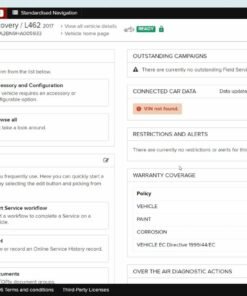
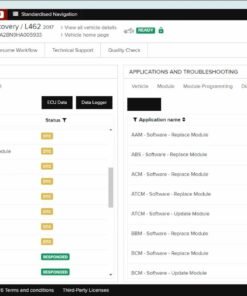
Pathfinder Application: Designed for 2017+ DoIP Ethernet architecture vehicles (L405/L494, New Discovery L462, New Defender, etc.), also supports advanced diagnosis for 2014–2019 multi-CAN vehicles.
SDD Application: Covers 2006–2018 traditional CAN-based Jaguar and Land Rover models, responsible for full-system diagnosis, coding, flashing and matching for older vehicles.
7. Common Update FAQ
Q: How to update device drivers and firmware?
JLR officially releases regular driver and firmware updates to fix communication issues and add new functions. The diagnostic software automatically detects, prompts and installs updates. Always update to the latest firmware and drivers if communication errors occur.
8. First-Time DoIP VCI Installation & Update Procedure
Initial firmware upgrade and setup is required for first use; plug-and-play for subsequent operations:
-
Connect the DoIP VCI to your computer via USB, close the pop-up USB device prompt directly.
-
Press the Windows key and open All Programs.
-
Open the Bosch program folder.
-
Launch VCI Software (JLR) and open VCI Manager (JLR).
-
Select the VCI icon and click Connect to VCI.
-
Select VCI Update and click Start Update.
-
Click OK to confirm the update prompt. Do not disconnect the device during updating.
-
Wait approximately 12 minutes for the upgrade to complete. The device will restart and beep.
-
Click OK and close VCI Manager. The device is ready for use.
9. Supported Vehicle Year Range
Full compatibility: 2005 / 2006 / 2007 / 2008 / 2009 / 2010 / 2011 / 2012 / 2013 / 2014 / 2015 / 2016 / 2017 / 2018 / 2019 / 2020 / 2021 / 2022 / 2023 Jaguar, Land Rover and Range Rover models
Software Matching Instruction: Pathfinder serves 2015+ newer vehicles, while SDD covers older models, achieving full model coverage with dual systems.
10. Package Contents
-
Brand-new Original JLR DoIP VCI WiFi Diagnostic Device × 1
-
Original OBD Main Cable × 1
-
Original USB Data Cable × 1
-
Original Network Cable × 1
Related products
JLR Diagnostic
$99.00
JLR Diagnostic
$5,797.44

$1,677.00
$1,337.00
$3,359.00
Demo Software
$99.00
$849.00